
TON (The Open Network) operates a bit differently from many other blockchain networks. In this guide, you'll learn how to check TON transactions made to our system in just a few easy steps.
Recommended TON Explorer
We strongly recommend using TONViewer rather than TONScan, as TONViewer's interface provides clearer and more accessible transaction information.
Understanding TON Deposit Addresses
Each TON deposit address generated by our system includes a Destination Tag (also known as "Memo", "DT", or "Payload" in TONViewer). This Destination Tag is a unique identifier at the end of the address, ensuring each deposit is routed to the correct user.
Example:
Our Global TON wallet address is UQB4BL...XdFtvgJ, all Merchant TON deposit addresses will look like:
UQB4BL...XdFtvgJ:1
UQB4BL...XdFtvgJ:2
...
UQB4BL...XdFtvgJ:9999
If you have an Enterprise TON wallet then you can find the address by opening the wallet details in your admin panel, all the deposit addresses generated for that particular wallet will follow the same rule as explained above.
Deposit instructions
When paying, users receive both the deposit address and the required Destination Tag:
Important:
Users must always enter the correct Destination Tag when processing a deposit. If the tag is omitted or incorrect, funds may be lost or credited to the wrong wallet, and recovery could be difficult or impossible.
Step 1: Locate the Transaction Hash
Your user should provide you with the transaction hash. This is a unique identifier for their transaction on the TON blockchain.
For this example we will use the transaction hash: 6a3cf182ccb6802d66bb4fc258369da70b4311ae420293f63e610bf1d63906d3
Step 2: Search on TONViewer
Go to https://tonviewer.com/ and enter the transaction hash in the search bar.
You'll see the transaction status, time, and a detailed table with all internal transfers associated with this transaction.
Step 3: Identify the Relevant Transfer
TON transactions may include multiple internal transfers (e.g., to different destinations). Locate the transfer specifically intended for your deposit address—in this example, it’s the line to UQB4BL...XdFtvgJ:
Step 4: Find the Internal Transfer Hash
Each internal transfer (movement within a transaction) has its own unique hash. To locate it:
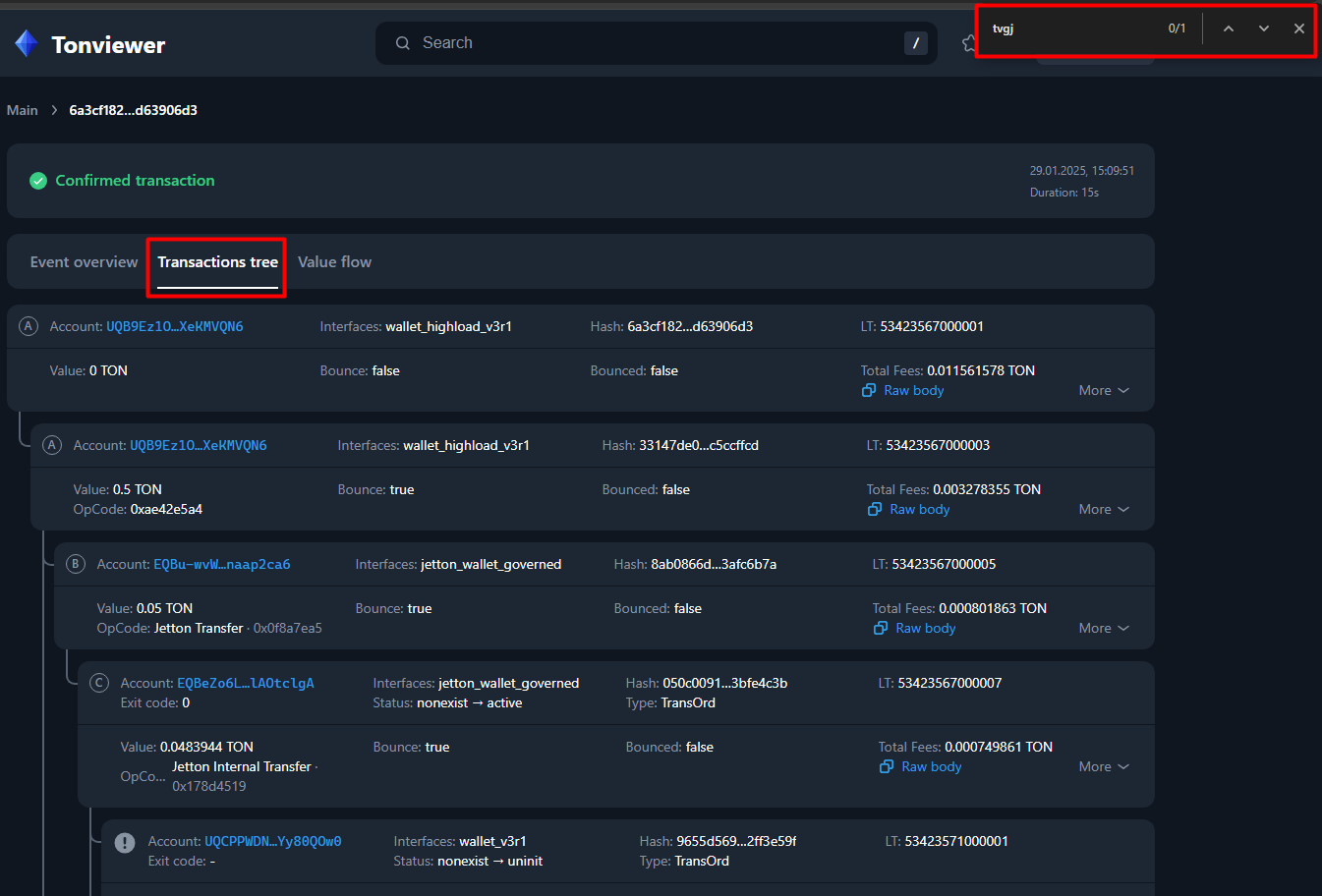
Go to the “Transactions tree” tab.
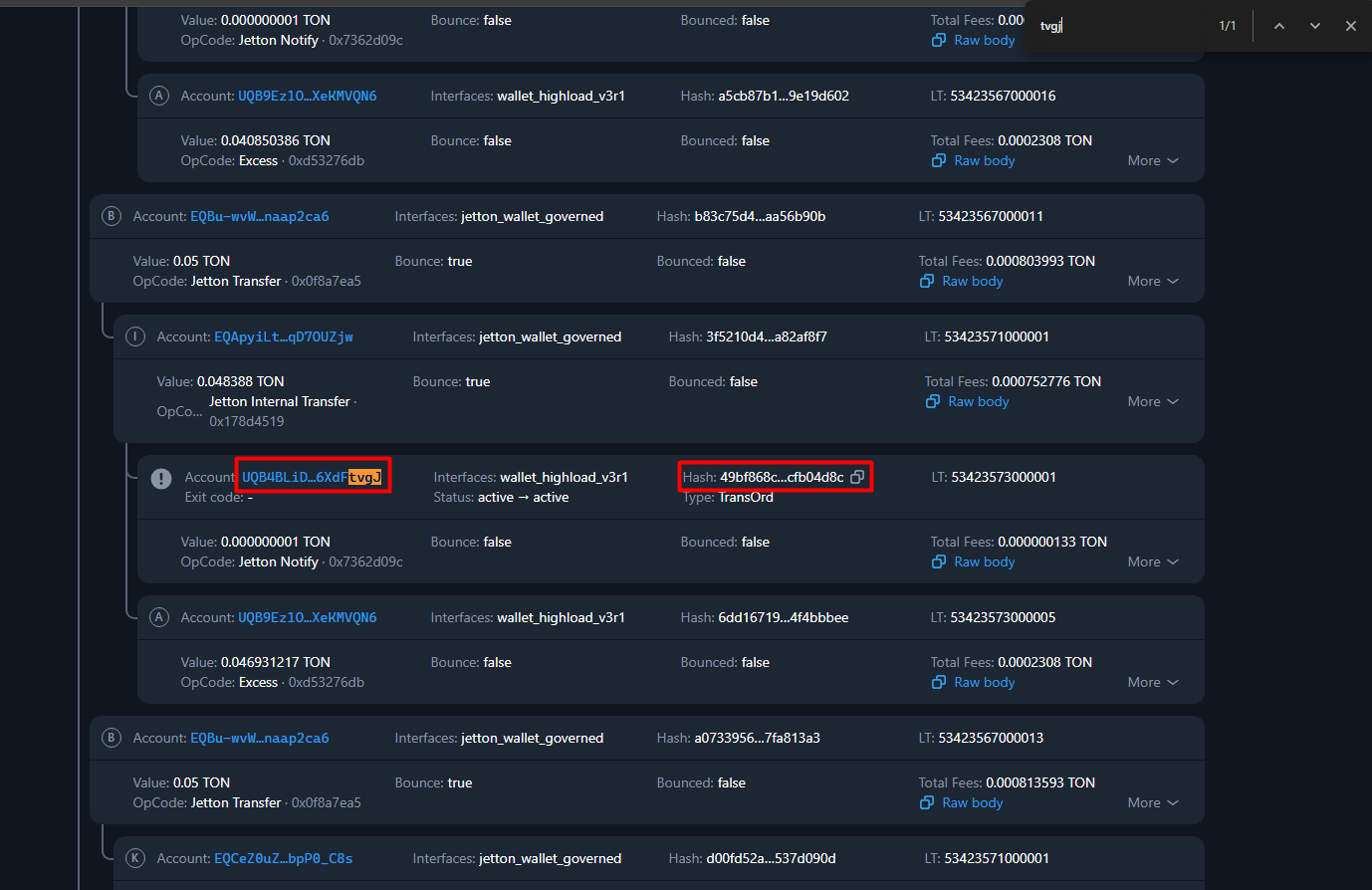
Search (using CTRL+F or CMD+F) for the last few characters of your deposit address (e.g., “tvgJ”).
Once you find your address in the tree, you’ll see the internal hash associated with this movement.
Tip: Hover over the hash and click the copy button to save it.
Step 5: Search for the Internal Transfer Hash in your admin panel
Now that you have the internal Transfer Hash, go to your admin panel and search for it on the Transfers section.
If the transaction does not appear on your admin panel then:
- Check the Destination Tag ("Payload")
- In the “Event overview” tab, you'll see a "Payload" column. The Payload should contain the correct Destination Tag (DT) used by the user.
In this example, the Payload is empty, this means that the user did not input any DT.
What if no DT was used?
For Enterprise Wallet Deposits:
If the user forgets the DT, the deposit will show as a Direct Deposit to Wallet Address. These funds are credited to your main wallet, and you'll need to manually assign the funds to the appropriate user.
For Merchant Wallet Deposits:
If the Destination Tag is missing, the funds will go to our Global Wallet. In this case, please contact our Support Team with all transaction details, so we can investigate and assist you further.
What if the wrong DT was used?
For these cases please contact our Support Team and provide them with all the details:
- Transaction link in the explorer.
- DT that the client used.
- The correct DT that the client had to use / The corresponding Deposit ID / the payment page URL.
Our team will investigate each case and advise you on how to resolve the situation if possible.
Additional proof may be requested from the client.
Summary
Always ensure users deposit to the provided address and include the correct Destination Tag.
To review a deposit:
- Get the transaction hash.
- Search it on TONViewer.
- Find your specific transfer.
- Search for the internal TXID in your admin panel.
- If issues arise, reach out to support as necessary.
This process ensures accurate and secure reconciliation of deposits on the TON network for your users.
If you have any further questions, please contact our Support Team.
Comments
0 commentsArticle is closed for comments.